

A simple product listing is not enough for brand visibility anymore. In 2026, with Performance Max, AI, and smart bidding deciding who sees what, your product feed is your most powerful tool for making sure the right people find the right products.
Treat your feed like a digital storefront. Just as an empty or outdated window display turns customers away, inaccurate data prevents shoppers from finding and trusting your products.
The more accurate your attributes, keyword-rich titles, up-to-date pricing and availability, high-quality images, and review data, the better your products perform. These small, high-impact tweaks can boost visibility, lower cost-per-click (CPC), and drive higher return on ad spend (ROAS) faster than almost anything else.
Here are 9 practical, proven ways to optimize your shopping feed for better visibility, higher click-through rates, and stronger ROAS.
Let’s Start With the Basics. What Is a Shopping Feed?
A shopping feed (or product feed) is a structured file that includes all your product data like titles, descriptions, prices, availability, and more. It feeds this data into platforms like Google Merchant Center, Facebook, Instagram, or Bing, where it's used to display your products in Shopping ads or listings.
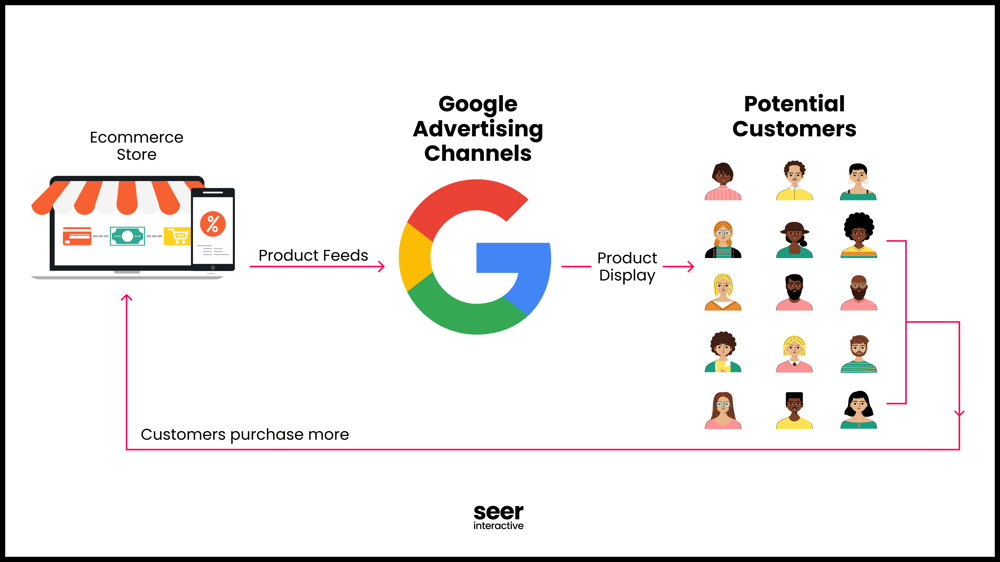
Why Optimization Matters
A clean, enriched feed ensures your products are:
- Easily discoverable for relevant search queries
- Shown to the right customers
- Accurately matched to shopper intent
- Delivered with high-quality data that enhances credibility
Think: If your business sells women’s athletic shoes, but the product is showing up for unathletic men, then you’re not going to get a lot of sales.
Optimized feeds = lower CPC, higher CTR, and more qualified traffic.
Step-By-Step Guide to Feed Optimization
1. Perfect Your Product Titles
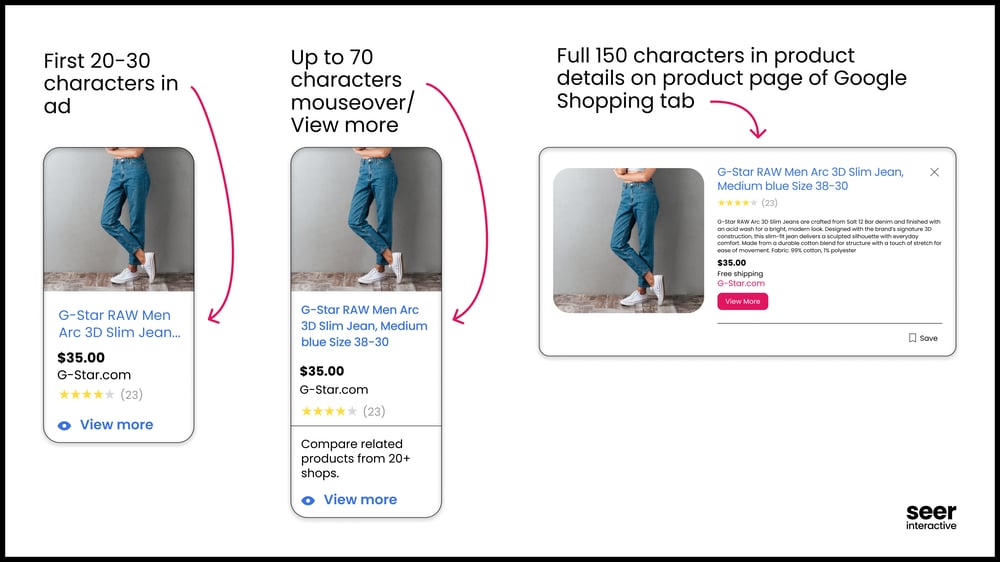
Your product title is the single most important attribute for shopping ad performance. It influences both your visibility and CTR.
Tips:
- Front-load with key details: Put the most important information first (like brand, product type, and key attributes), since both Google and shoppers prioritize the beginning of the title.
- Follow a structured format: Follow a clear format such as Brand + Product Type + Key Features (color, size, etc.) to keep titles uniform and easy for Google to understand at scale
- Use common search terms shoppers would type: Include common search terms that real shoppers use so your products are eligible for relevant queries and more likely to earn clicks.
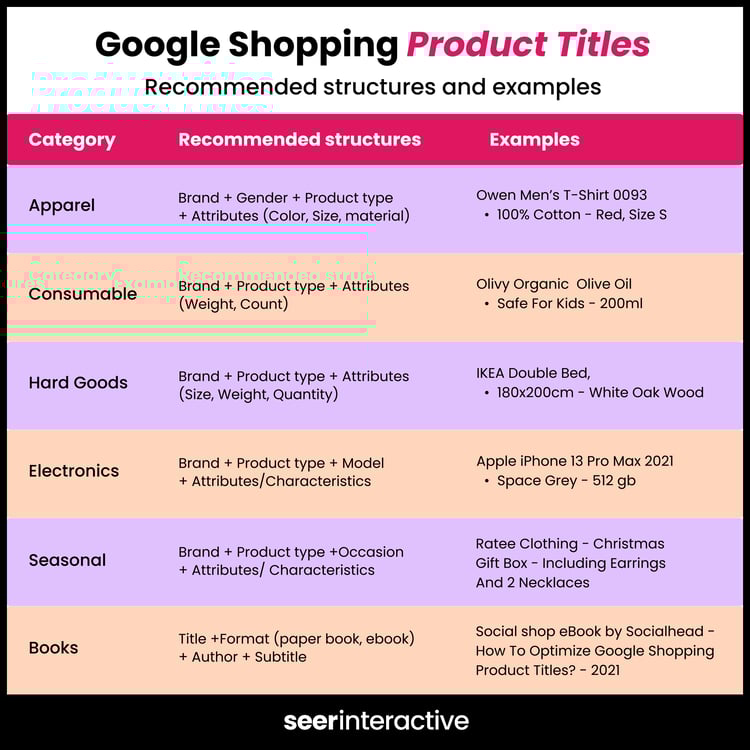
Example:
Bad: "Wireless Earbuds - Best Price - Buy Now!!!"
Good: "Sony Wireless Noise-Cancelling Earbuds Black, Bluetooth 5.2, WF-1000XM4"
Bad: "Coffee Maker Keurig"
Good: "Keurig K-Duo Classic Single-Serve & Carafe Coffee Maker, 12-Cup, Black, K-Duo"
2. Write Clear, Keyword-Rich Descriptions
Descriptions should sell the product as well as help Google match it to the right queries.
Tips:
- Include relevant keywords naturally
- Use real shopper search terms and top modifiers, and prioritize keywords: primary product → feature/modifier → model → key benefit
- Highlight benefits and features (materials, uses, dimensions)
- Shoppers care about why a feature matters. Translate specs into benefits: “Noise-cancelling” → “blocks plane and commute noise so you can focus”
- Include core technical specs: materials, capacity, dimensions, weight, battery life, connectivity, IP rating, model numbers, and compatibility. These are the attributes Google and buyers use to match and qualify products.
- Avoid fluff and focus on what matters to shoppers
- Keep the opening value proposition to one short sentence
- Limit bullets to 3–6 clear items
- Put legal/return/warranty notes or long care instructions below the specs or on the product page (not the ad description)
- Avoid marketing CTAs in the product description that are better in ad copy and focus on product facts
3. Use High-Quality, Compliant Images
Images directly impact CTR. Use high-resolution, clean product images that follow platform guidelines.
Best Practices:
- White background
- No logos, watermarks, or text overlays
- Show the product clearly (consider multiple angles if allowed)
Everyone is a consumer. Think about how you would want to see a product displayed in order to make a purchase. If you’re looking for a shirt, wouldn’t it be more helpful to see it on a model of a similar body type? If you’re thinking about buying a new tool, wouldn’t it be helpful to watch a short video on how to use it properly?
The more uncertainty you remove for your ideal shopper, the more likely they are to convert.
4. Fill In All Relevant Attributes
Platforms like Google and Meta offer dozens of optional attributes for a reason. Using them can help your products stand out.
Key fields to complete:
- Brand
- Use the manufacturer’s official brand name (case-normalized). Don’t invent nicknames or variations.
- GTIN / MPN
- GTINs (UPC, EAN, ISBN, GTIN-14) are a strong eligibility and matching signal, and many categories require them. MPN helps when GTIN is unavailable.
- Product category (Google Product Taxonomy)
-
-
- Use the most specific applicable category. Category mapping can be automated via rules or ML classification trained on product titles/descriptions.
-
- Size, color, material, gender (for apparel): Include all relevant details to improve relevancy and filtering.
- Custom labels (e.g., “Best Seller,” “Clearance”)
- Use flexible metadata for segmentation, reporting, and bidding. Google allows up to five custom labels ( custom_label_0 through custom_label_4). Common examples:
- custom_label_0 = "Price_Under_50"
- custom_label_1 = "Margin_High"
- custom_label_2 = "Season_Spring23"
- custom_label_3 = "TopSeller"
- custom_label_4 = "Clearance"
- Use flexible metadata for segmentation, reporting, and bidding. Google allows up to five custom labels ( custom_label_0 through custom_label_4). Common examples:
Using these attributes fully and accurately ensures your feed is eligible, highly relevant, and easier to optimize for automated campaigns.
5. Optimize Product Categories
Assign each product to the most specific Google Product Category possible. This helps Google understand your product and match it to relevant queries.
Example:
Use Apparel & Accessories > Clothing > Dresses rather than Apparel & Accessories.
Product Type vs. Product Category
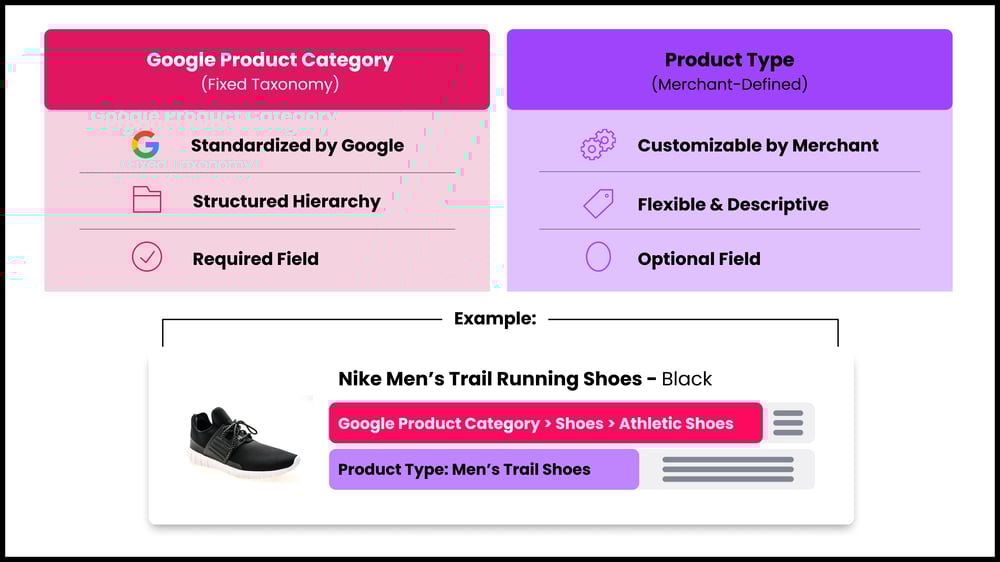
Understand the difference: The Google Product Category (GPC) is a standardized taxonomy set by Google and is required for every product. The product type is merchant‑defined and optional on paper, but in reality it’s a powerful signal to help Google better understand and match your products.
Categorize deeply: Assign the most specific category possible — up to five levels deep. For example, instead of “Apparel & Accessories,” categorize running shorts as “Clothing > Men’s Clothing > Activewear > Shorts > Running Shorts”. Deep categorization improves the relevance of your ads and reduces wasted clicks.
6. Monitor Pricing & Availability
Google penalizes mismatches between your feed and your website. Ensure your feed reflects:
- Real-time pricing (including discounts)
- Make sure your feed reflects current prices, including discounts. Populate the price field (required), sale_price (optional), and sale_price_effective_date (recommended for promotions).
- Always include the currency, e.g., 199.99 USD
- For frequent promotions or dynamic pricing, push updates via API or webhook instead of waiting for scheduled feed pulls
- Up-to-date stock levels
- Keep the availability field accurate (in stock, out of stock, preorder, backorder). If possible, include inventory feeds for store-level stock, and use availability_date for limited-stock or preorder items.
- Accurate shipping and tax info
- Include shipping costs, weights/dimensions when relevant, and taxability or tax tables for countries that require it.
Keep data up to date: Make sure the prices and availability in your feed always match your website. Google regularly checks for discrepancies and may disapprove your products if there’s a mismatch. Use scheduled feed fetches, automatic item updates, or the Content API to avoid outdated information.
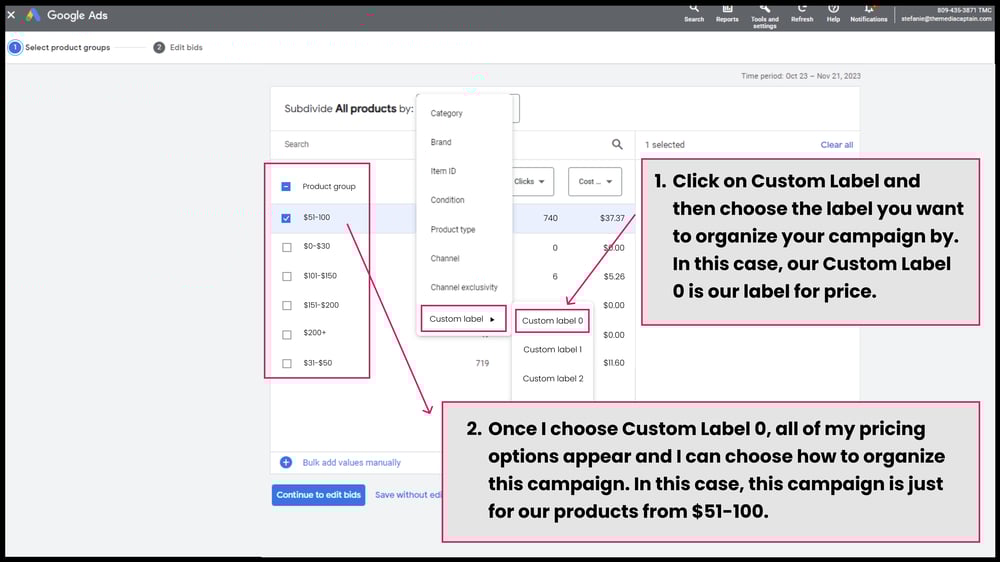
7. Segment With Custom Labels
Custom labels help you categorize products for smarter bidding and reporting in your campaigns.
Use cases:
- Price tiers (e.g., “under $50,” “premium”)
- Seasonal products
- Performance-based labels (“high ROI,” “low stock”)
Take full advantage of custom labels: Google allows up to five custom labels in each feed. These are optional but highly valuable because they let you subdivide products for bidding and reporting. Custom labels help you control ad spend and run experiments. Common strategies include:
- Price points or price rank: Segment high‑, mid‑, and low‑priced items and bid differently on each.
- Margin or profitability: Label products by margin to ensure profitable items receive more budget.
- Seasonality: Use labels such as “Spring,” “Back to School”, or “Holiday” to quickly raise or lower bids during specific seasons.
- Top performers vs. clearance: Identify “Top Seller,” “Low Stock”, or “Clearance” items to adjust bidding strategies.
Get creative — custom labels can represent any dimension you care about (inventory status, shipping options, etc.).
8. Performance Max and AI‑Assisted Optimization
Feed quality drives Performance Max: Optimized titles, attributes, and images improve relevance, lower CPCs, and expand reach. Poor data can limit impressions and automation.
Use AI to scale improvements: AI tools can refine titles, categories, and keywords at scale, but high-value products should still be reviewed manually.
Proactive optimization is ongoing: Continuously update titles, attributes, and categories to keep your feed competitive.
9. Audit & Clean Feed Regularly
Run frequent diagnostics in Google Merchant Center and fix errors or warnings immediately. Even a few disapproved items can drag down account performance.
Bonus Tip: Leverage Feed Optimization Tools
Tools can automate much of this work and give you granular control over your feed across multiple platforms. Top tools include: DataFeedWatch: Create, optimize, and manage feeds for Google, Facebook, Amazon, and more with rule-based automation and bulk editing.

Feedonomics: Full-service feed management with customization, optimization, and built-in performance reporting.

ShoppingFeeder: Distribute feeds to marketplaces and comparison sites with platform-specific rules.

GoDataFeed: Connect your store to 200+ channels, automate feeds, and optimize product data.
Using these tools helps keep your feeds accurate, updated, and tailored to each channel, freeing up time for strategy and creative work.
Final Thoughts
A well-optimized shopping feed is not a one-and-done task, it's a continuous process of refinement. As competition increases, the brands that invest time into feed hygiene and data accuracy will have the upper hand.
Although “Merchant Center” is a Google term, many platforms operate similar product‑feed hubs: Meta calls it Commerce Manager, Pinterest uses a catalog system, and Amazon’s Seller Central relies on product feeds. These systems all depend on accurate, richly detailed product data.
The principles in this guide, including clean product info, keyword-rich metadata, detailed categories, and regular audits, apply to all platforms from Google to Facebook, Pinterest, Bing, and Amazon. Optimizing feeds across channels helps your products perform wherever customers shop.
Remember, your shopping feed is more than a data file, it's your digital storefront. Make it count!

.png)