
Using Twitter and Backlinks to Build Links
In SEO, we look at many pools of data to find how we can get our client to rank better and increase revenue from search. But we usually look at them individually — exploring competitor backlinks, Twitter users, ect. What if we mashed those pools of data together to find linking opportunities? That was a question Wil posed to me several months ago and asked that I develop a tool in Excel.
The fundamental goal of the tool is to mash Twitter and backlink data together to find out who is following your client but does not link to them. This can be very powerful because it leverages existing relationships to get links that scale. After we answered that question, we then began using the data in different ways to answer new questions. Although we are only going to be looking at one way to mash data together, there are endless possibilities once you learn the Excel functions VLOOKUP and COUNTIF and using pivot tables to consolidate and sort data.
Lets begin with how to find people that follow your client but do not link back to them.
Pull the Twitter Data
Export your clients Twitter followers using Export.ly. If they have under 10,000 followers you can get the Twitter data with a tweet about Export.ly, but if youre getting over 10,000 followers, youll have to pay a $10 fee.
Creating a New Excel Spreadsheet
We are going to do this with Wil’s Twitter data as example. Paste the raw Export.ly data into column A in a new Excel workbook.
Pulling OSE Backlinks
Export your clients external backlinks from Open Site Explorer or Majestic SEO. We are going to export SEER Interactive’s external backlinks from the root domain, pulled from Open Site Explorer. Now paste this data into into column B in a separate sheet in the workbook.
Cleaning URLs
One of the most challenging parts of this exercise is cleaning the data. We need to remove the http://, www. and everything that comes after the / in both sets of data. That way we can compare apples to apples from our backlinks and Twitter data to pivot. There is a brain-numbing formula to do this using IF, ISERROR and SUBSTITUTE functions, but even though its not as scalable, its much easier to use find and replace than write complex formulas in Excel (thatll be for another day). Or, you can use Ontolos hostname tool, but lets stay in Excel for this.
In our Twitter spreadsheet, copy and paste column E (the URL column) into column N. Now select column N, find and replace http:// with nothing and do the same for www., /* and “/” — in that order. If you do it out of order you could end up erasing your URLs!
We now have to do the same for our backlinks. Copy and paste column B (URL), to column A. Repeat the process above to clean the URLs.
Find Who Has and Has Not Linked To You
After weve cleaned our URLs, we can use the COUNTIF statement to determine whether our followers have linked to us. Label column O in the Twitter data sheet, Link: Yes / No, and write the function in O2:
=IF(N2=”",”No”,COUNTIF([select column A in the backlinks], [select N2 in the Twitter Sheet])>0,”Yes”,”No”))
Copy and paste this formula to the bottom of the Twitter data set. This function will count the number of times the clean URL in the Twitter data appears in the backlinks and account for users that do not have a URL in their Twitter profile. You should now have a column that is filled with Yes and No.
Creating a Pivot Table
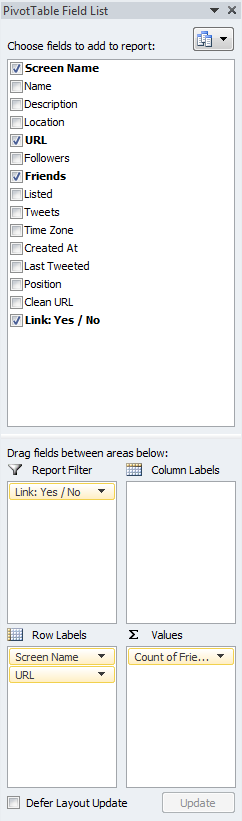
Lets take this new data and pivot off of it to see who is following our client but not linking to them. Select column A through O and click on the pivot table button. When you select OK, it should open a new spreadsheet.
Adding Pivot Table Filters
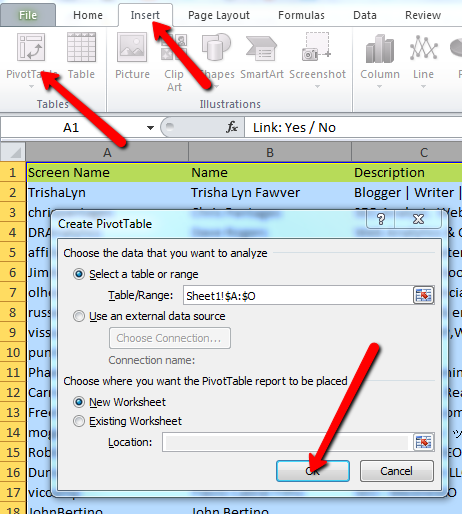
Drag
- “Link: Yes / No” to the “Report Filter”
- “Screen Name” and “URL” to “Row Labels”
- “Friends” to “Values”

Now we need to refine these settings a bit. Click “Count of Friends” and select “Value Field Settings.” Now, select “Sum” and OK.
Modifying the Pivot Table
We have all of Wil’s Twitter followers in our pivot table. We want to only look at those that are not linking to SEER Interactive, so we need to select the “Link: Yes / No” filter in the pivot table and click “Yes” and “(blank).” We now have a list of Wil’s Twitter followers that do not link to SEER. But it’s very disorganized.
Right click on one of the “Sum of Friends” numbers, “Sort” then “Largest to Smallest.”
Now you can DM to the bloggers that you have a good relationship with and maybe guest post or ask for a link.
Other Things You Can Do With The Data
This is only one way to slice the data. For more advanced Excel junkies, you can:
- Use the rank function to weigh “listed,” “followers” and “friends” to create an influencer rank, because sorting the number of followers a user has isn’t the best indication of influence.
- Sort Twitter users by largest to smallest number of followers and eliminate URL duplicates. If there are multiple followers from one domain, it could inflate your friend count. This only applies if you are pivoting off the website.
- Add RTs to figure out other users that are usually tweeted with your client. This can help you better understand your client’s “Twitter social circle.”
- Use domain and page metrics from the OSE export to sort Twitter users. At the end of the day, it doesn’t matter how influential your prospects are on Twitter if you’re trying to get links from authoritative domains.
- Bring in the Google SERPs to see who is ranking ahead of you and if there is any way to get a link from those people in their social circle.
- Pivot on your Twitter follower’s location to find local linking opportunities.
Now you can build a dashboard that helps you find linking opportunities from your client’s Twitter users. We did this for Wil and SEER:
If you get a chance to try out this tool for your client, we’d love to get feedback. Also, if you find other ways to slice and dice Twitter data to get links for your client, please add them to the comments section.
Thanks and enjoy!

Posted: 07.28.11


Shane Eubanks:
Wow, that’s pretty slick for doing competitive research! Thanks for the thorough tutorial! Very easy to follow and helped me locate some potential backlinks within minutes.
Thanks!!
anthonydnelson:
Love the idea of this and the great instructions on how to do it. If only my client’s Twitter followers list wasn’t so full of junk/spam accounts.
Aunesty Janssen:
Again, great tutorial and in depth directions. Thanks!
Malmborg:
This is brilliant. I feel this could be the beginning of game changing back link analysis.
Thanks for the tutorial.
David
Ethan Lyon:
@Shane – Thanks!
@Anthony – You can use the Rank() function on followers and listed metrics to weed out the spam. We used it and had pretty solid results.
Rebecca L.:
Where do you see a $10 fee for exports with more than 10K followers? I see a contact form promising a free trial if I let a salesperson call and pitch me an expensive product, but no paid one-shot export solutions.
Preston Van Dyke:
I can’t seem to get the CTRL + Replace to work for the “/*.” Have you experienced and issues with this as well?
At first I thought it may be a problem with the Mac version of Excel, but tried it on a PC and got the same error.
Ethan Lyon:
@Rebecca – It seems that they got rid of that option and now you have to go through Simply Measured. My apologies.
Ethan Lyon:
@Preston – I have not experienced that issue before. When I find and replace “/*” with nothing, it will strip off all of the directories on the selected URLs. If it still doesn’t work, let me know and I can send you a formula that will do the same thing.
Preston Van Dyke:
That’s weird. I must be missing something, but can’t figure what it may be. I would love the formula if you are willing.
Plan on using this strategy for quite a few clients this month. Love it.
Ethan Lyon:
@Preston – Here ya go: =LEFT(SUBSTITUTE(SUBSTITUTE(A1,”http://”,”"),”www.”,”"),FIND(“/”,SUBSTITUTE(SUBSTITUTE(A1,”http://”,”"),”www.”,”"))-1). It’s a pretty clunky formula, but it should do the trick. Just make sure your URLs are in column A. Then drag the formula to the bottom of the URLs and you should be all set. Let me know if it doesn’t work out.
Preston Van Dyke:
Thanks Ethan. For some reason that Formula was throwing an error too. Our resident Excel Guru hooked me up with this formula to simply extract the root domain. Works like a charm so I thought I would share:
=IFERROR(MID(A2,IFERROR(FIND(“//www.”,A2)+6,FIND(“//”,A2)+2),IFERROR(FIND(“/”,A2,9),LEN(A2)+1)-IFERROR(FIND(“//www.”,A2)+6,FIND(“//”,A2)+2)),”")
Ethan:
@Preston I’ve used a similar formula before, but have found the substitute function to be a bit faster to write. Thanks for passing it along! Let me know how everything goes.
- Ethan
Ethan:
@Rebecca – I just found where you pay $10. Log in and try to export a Twitter users followers and you should see a message like this: http://screencast.com/t/t1nXMCS0P
Elijah:
Fantastic tutorial. Super detailed :) I just printed it out for later reference…
Purple Trout:
Slick! Looking forward to using Excel for something other than Fantasy Football. Thanks!
Robin DeCato:
Super helpful. Thank you for sharing!
Brian Freire:
What a great way to get backlinks, Thanks for the tutorial, I will be trying out this out.
Luke:
What qualifies as a link? They have just linked from their Twitter account at some point? Maybe I did it wrong but out of our 2k followers I got 0 links.
Better Homes:
Lovely post! simply love the idea you’ve portrayed. But don’t you think that i’ll irritate your followers?? as in like if you pitch them or mail them regarding thanks for following us please show some link love by giving us link?
This tool is awesome no doubt but as an cooperate business site dont you think it’ll look pretty awkward asking a link from you followers.
This could a good topic to discuss and i would really like to learn more on it.
Staci Smith:
This is fabulous on so many levels from the intent to the execution. There is so much Twitter clutter that aside from your message getting lost amid the junk masses, it can be hard to tell who is really processing your information and has the potential to grow into a good relationship. This gives you a good starting point for lasering in on those people… Plus you get to have fun with EXCEL! Thanks once again for the insight!
Alex Adekola:
This is an awesome idea…so glad I went to LinkLove in NO….It’s still paying back dividends.
Carlo Rodriguez:
Hi, I try to make a Influence Rank but I dont understand very well the Rank Function.
If a use followers like a number and his row followers, friends and listed like a reference the number is not usefull.
For other side, if a use followers like a number and his colum like a reference the number is not usefull too.
I think that I need create a rank for followers and other for friends and other more for listed and them combined but I’m not sure.
Any help is welcome.
Reggards from Peru :)
Ethan:
Hey Carlo,
You’ll want to compare the user against all other users for that given metric. So if I’m ranking Twitter followers, I’d rank the specific user’s followers against everyone else’s followers. Once you do that for all of the metrics that are important to you, you can add them up to get a score. Sort the score and you have your influencer rank.
Make sense?
- Ethan
Carlo Rodriguez:
Thanks Ethan, I ‘m not sure if I do the things well. For example I create a rank for followed, friend and listed. I have the 3 ranks, but the result are not usefull.
I supose that I need combine the 3 for create an Adrank. I think that I can divide followers/friends, if the number is high is better. But I’m dont know how use the list in that equation.
For other Side in the equation that I did, maybe I don’t need the Rank() function. Honestly I don’t see the utility from Rank() function in this case.
Probiotix:
Ethan,
The is a very inspiring post which opens new opportunities to all those stuck to old fashioned link building methods. Thanks for sharing the export.ly tool, really handy.
Keep up the good work.
Herwin Wevers:
Wow, Ethan, this is a great way to find some easy backlinks from loyal (hopefully) followers. Great explanation how to get these. Let them coming these great tips.
Andre:
I like the reasoning behind the idea, but I think if your twitter links out using bitly or twitter’s automatic shortner, it will be harder to recognize which followers link to you.
Sandeep:
Hi @Ethan..thanks for the amazing post..just a quick note where can we get a example of the above spreadsheet..as a reference
Monique Sherrett:
For Preston Van Dyke and Ethan on the find/replace for /*
Sometimes Excel tries to be helpful and in the case where /* won’t replace, it’s because the cell actually contains a formula noting that this is a hyperlink.
Here’s what you need to do.
Select the column.
Edit > Copy
Edit > Paste Special (select Values)
Then you can carry on with find/replace for /*
Sammy:
Great,,,
thank for nice posting…
I’m following you…
How can i get that excel file…
Nikos Eleftheriou:
Fantastic method! My customers will love this tactic of extracting data and information! Thanks for sharing the knowledge!
Alex Juel:
Anyone have experience doing this on Excel for Mac? Pivot Tables seem to be set up a bit differently on Mac, and I just don’t get it.
Alex Juel:
Nevermind, I got it! It’s just not as clear on Excel 2008 for Mac. Excel 2008 on Mac doesn’t have the Report Filter, Column Labels, Row Labels or Value windows in the field list, so I just had to drag the buttons to the right areas on the spreadsheet. This is an awesome tutorial, thanks so much for putting it together.